When you’re adjusting materials, checking a mesh, and taking product pictures, reaching for the same menus again and again interrupts the flow. A small set of familiar shortcuts makes those repeated steps easier.
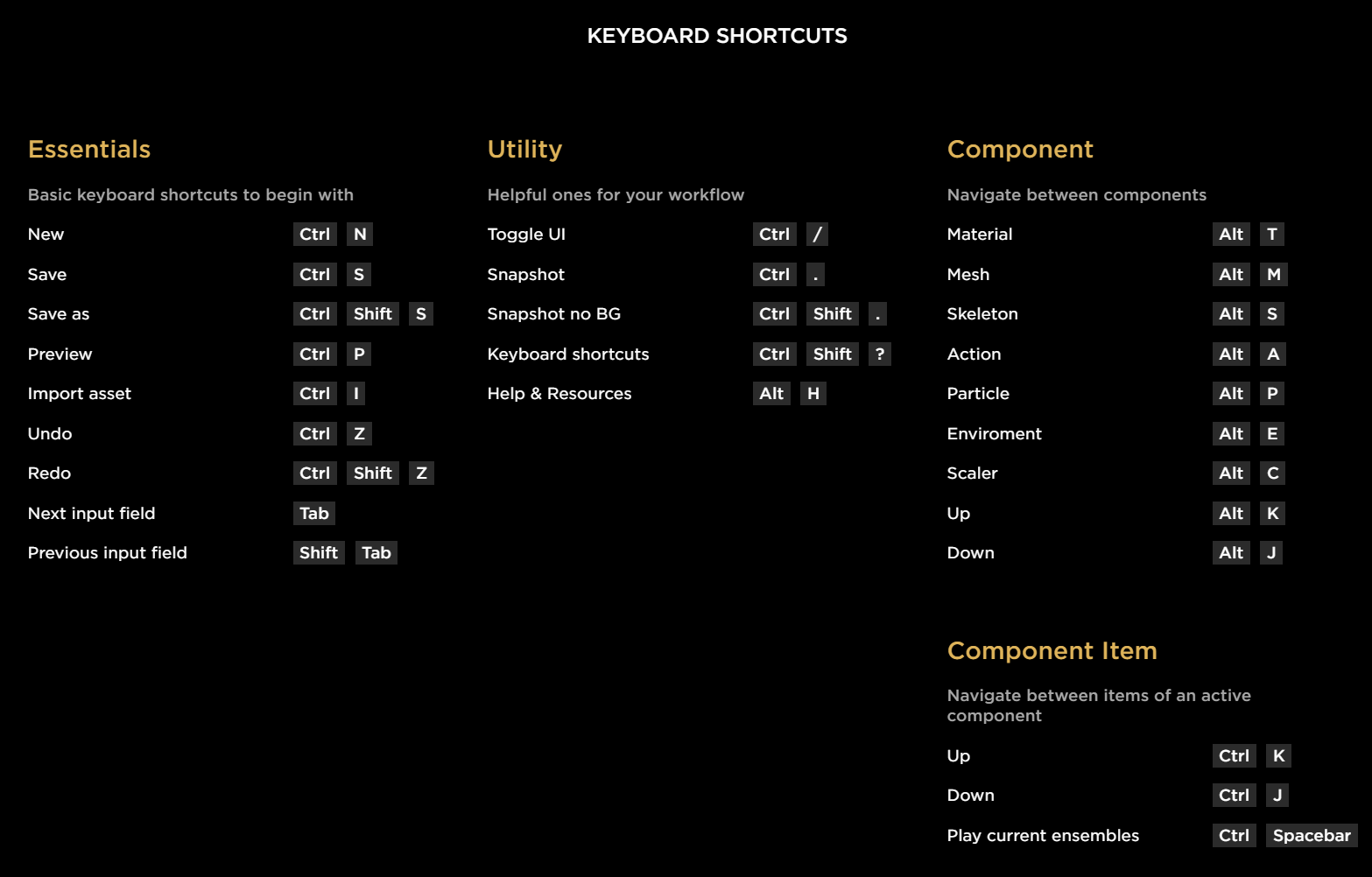
First published in November 2021, this guide includes the original screenshot and downloadable Word reference. The older bindings are preserved below as a dated reference.
Start with your installed Studio version
IMVU’s official Studio shortcut guide explains how to open the reference inside Studio:
- Windows: Control + Shift + /
- macOS: Command + Shift + /
You can also open it through Studio’s Help menu. Check that reference first when a combination below behaves differently. Keyboard layout, operating system, and Studio updates can affect bindings.
The everyday loop: open, change, preview, save
Work on a saved copy, make a focused change, preview it, and save when you’re happy with the result. Learn these few actions before trying to memorize the entire application.
The following Windows-style combinations come from the 2021 reference; they have not all been retested against the current Studio release.
| Action | Original shortcut |
|---|---|
| New project | Ctrl + N |
| Save | Ctrl + S |
| Save as | Ctrl + Shift + S |
| Preview | Ctrl + P |
| Import | Ctrl + I |
| Undo | Ctrl + Z |
| Redo | Ctrl + Shift + Z |
| Next field | Tab |
| Previous field | Shift + Tab |
Jump between components
A product can involve more than one editor. Keeping materials, meshes, and actions straight is especially useful when you’re diagnosing a problem.
| Component or action | Original 2021 shortcut |
|---|---|
| Material | Alt + T |
| Mesh | Alt + M |
| Skeleton | Alt + S |
| Action | Alt + A |
| Particle | Alt + P |
| Environment | Alt + E |
| Scaler | Alt + C |
| Move up / down through components | Alt + K / Alt + J |
| Move up / down through component items | Ctrl + K / Ctrl + J |
| Play current ensembles | Ctrl + Space |
Use the menu or the current shortcut reference if a command does not match your installation. Do not substitute these for the controls in IMVU Classic: the same key combination can mean something different there.
Prepare clean product pictures
The original guide recorded Ctrl + . for a picture with a background and Ctrl + Shift + . for one without a background. It also listed Ctrl + / for toggling the UI and Alt + H for Help. Treat these as historical bindings and confirm them in Studio before using them.
After taking a picture, open the Auto-Framer to crop an IMVU catalog icon. Keep the source image so you can make another crop later.
Original screenshot and Word reference
Click the screenshot to open it at full size. Both files are hosted here, so you can keep the reference alongside your work.
Download the keyboard shortcuts Word document (.docx, 22 KB)
These are the original 2021 reference materials. Personal credits, contact links, and document metadata have been removed from the downloadable copy, and its spacing has been compacted. Use Studio’s current Help reference when bindings differ.
Search and print the reference
Use the application filter to keep Studio and Classic shortcuts separate, then print the reference or save it as a PDF.
REFERENCE DESK / KEYBOARD
IMVU Keyboard Shortcuts
Classic and Studio have different controls. Use these inside the named application; a browser may assign the same keys to a different action.
16 shortcuts · printing includes this filtered selection
Open / close furniture tools
Use inside an IMVU Classic room.
Official reference ↗Explore mode
Leave the selected editing tool.
Official reference ↗Move furniture
Select a furniture item, then drag.
Official reference ↗Rotate furniture
Drag an item with the rotation tool.
Official reference ↗Resize furniture
Drag to adjust its scale.
Official reference ↗Duplicate furniture
Select an item to place another copy.
Official reference ↗Reset transforms
Restore scale, rotation and offset.
Official reference ↗Lock / unlock furniture
Protect an item against editing.
Official reference ↗Remove from room
The item remains in your inventory.
Official reference ↗Adjust height while moving
Use with the Move tool selected.
Official reference ↗Adjust horizontal offset
Use with the Move tool selected.
Official reference ↗Adjust pitch
Use with the Rotate tool selected.
Official reference ↗Adjust roll
Use with the Rotate tool selected.
Official reference ↗Show Studio shortcut reference
Opens the shortcut reference in Studio.
Official reference ↗Show Studio shortcut reference
Use Command on macOS.
Official reference ↗Open Studio preferences
The preferences panel includes your CID.
Official reference ↗For dark PDF output, enable “Background graphics” in your print dialog. CSS requests exact colors, but your browser and printer settings have the final say. IMVU Studio’s built-in reference is the best place to check version-specific controls.
Send a correction with the Studio version, operating system, and action name.
← Back to all creator articles